Introduction
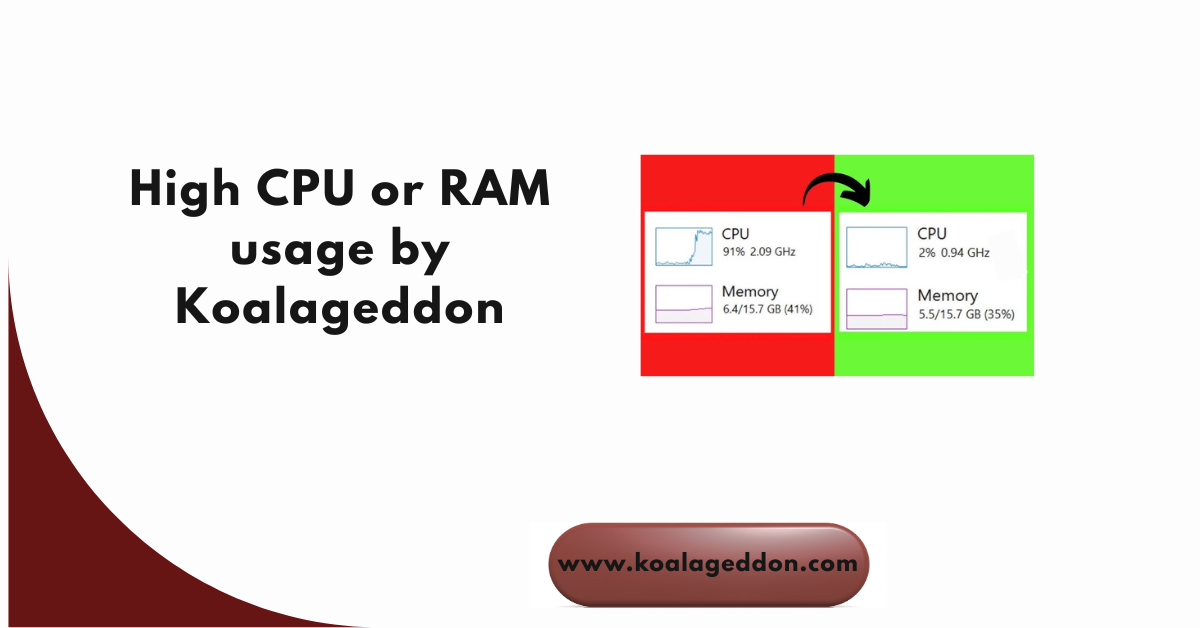
Performance spikes in Koalageddon can manifest as system lag, stuttering in games, or slow application response times. When the software consumes excessive system resources, it may burden the hardware, leading to instability. Understanding how to manage these spikes is important for maintaining a smooth gaming and multitasking environment.
Why does overwhelming resource usage affect system stability?
When CPU usage remains high for extended periods, it can trigger thermal throttling, where the processor slows down to prevent damage. High RAM usage forces Windows to use “Virtual Memory” (paging), which is notably slower than physical RAM, causing the entire operating system to feel sluggish and unresponsive.
How optimization improves long-term performance
By fine-tuning how Koalageddon interacts with your system, you can reduce its resource footprint. Optimization ensures the software draws power only when necessary, preserving your hardware’s lifespan and keeping your PC fast even when multiple game clients run in the background.

What Causes Koalageddon to Use High CPU or RAM
How Koalageddon processes tasks in the background
Koalageddon works by monitoring DRM (Digital Rights Management) DLLs and suspending new processes briefly before injecting its own logic. This monitoring requires constant “API polling.” If the polling frequency is too high or if the software encounters a file it cannot access, it may enter a “Busy Loop,” causing a sustained CPU spike.
Common triggers for resource spikes
Resource spikes are often triggered by:
- Large Config Files: A config.json with hundreds of blacklisted AppIDs can take longer to parse.
- Log Bloat: If the software is set to “Debug Mode,” it writes massive amounts of data to the disk, consuming both CPU cycles and RAM.
- Anti-Virus Interference: When a security program scans Koalageddon’s real-time hooks, the conflict can cause a heavy processor load.
Why are some systems affected more than others?
Systems with fewer CPU cores or slower mechanical hard drives (HDDs) struggle more with Koalageddon’s real-time operations. Additionally, laptops with aggressive power-saving profiles may experience “stuttering” as the OS tries to throttle the background operations that Koalageddon needs to function.
System Resource Behavior During Koalageddon Operation
How CPU threads are utilized during workloads
Koalageddon is primarily a multi-threaded application, meaning it distributes its work across multiple processor cores. During a game launch, you may see one thread spike significantly as it performs the “DLL Injection,” while other threads manage the communication with the platform integration (Steam, Epic, etc.).
Memory allocation behavior and caching behavior
The software allocates a small amount of RAM for its persistent hooks and a larger “Temporary Buffer” for caching AppID data. This caching is intended to speed up future launches, but if the cache becomes corrupted, the software may repeatedly try to re-allocate memory, leading to a “Memory Leak” scenario.
Impact of multitasking on resource consumption
If you are running resource-heavy tasks like video rendering or 4K streaming while Koalageddon is active, the system’s interrupt handler has to work harder to manage the requests. This multitasking overhead can make Koalageddon appear to use more resources than it actually does, as it competes for “Priority Time” on the CPU.
Settings That Increase CPU or RAM Usage in Koalageddon
Background scanning and processing options
Certain versions of Koalageddon include a “Scan for New Games” or “Auto-Update Integrations” feature. If these are enabled, the software will periodically crawl your drive for new executables. This background indexing is a major source of unexpected disk and CPU usage.
Real-time features that consume extra resources
Features like “Store Mode” (which intercepts live store traffic) require more active monitoring than “Game Mode” (which only hooks when a game starts).
- Store Mode: High overhead; constant monitoring of the platform client.
- Game Mode: Low overhead; only active during the game’s startup sequence.
Why default settings may not suit all systems
Default settings are often balanced for mid-range gaming PCs. If you are using an older laptop or an ultra-budget build, the default “Polling Rate” for DRM hooks might be too aggressive, necessitating manual adjustment in the configuration file to lower the software’s demand on your hardware.
How to Optimize Koalageddon Settings for Stability
Reducing CPU load through configuration changes
The most effective way to lower CPU usage is to prune your AppID blacklist. Instead of blacklisting every game you don’t use, only enable Koalageddon for the particular platforms or games you currently need.
- Open your config.json.
- Set “enabled”: false for platforms you aren’t currently using (e.g., Uplay if you are only playing Steam games).
- This reduces the number of “Hooks” the software has to maintain.
Limiting memory usage without breaking features
To keep RAM usage low, you can disable verbose logging.
- Locate the “Logging” or “Debug” section in the configuration.
- Ensure it is set to “Info” or “Error”, not “Debug” or “Trace”.
- This prevents the software from building a massive log buffer in the system RAM.
Managing performance and functionality safely
Use the “Hook Mode” instead of “Proxy Mode” where possible. While Hook mode requires a more complex setup, it is generally more efficient for the CPU because it doesn’t require duplicating entire .dll files in your game directories, which can occasionally cause redundant memory allocations.
Background Operations That Cause Resource Overload
Hidden tasks running alongside Koalageddon
Software like RGB controllers (iCUE, Razer Synapse) and “Game Boosters” often conflict with Koalageddon. These programs also try to hook into your game’s memory, creating a “Resource Tug-of-War” that results in high cpu ram usage as the OS arbitrates between competing hooks.
Conflicts with other high-demand programs
Running Windows Update or an Antivirus “Full Scan” while using Koalageddon will cause a performance crash. Since Koalageddon modifies system-level behavior, the Antivirus repeatedly checks the modified memory addresses, causing the CPU to work overtime during security checks.
How to identify unnecessary background activity
Open Task Manager and sort by the “CPU” and “Memory” columns. If you see processes like MsMpEng.exe (Windows Defender) or SysMain spiking alongside Koalageddon, it is a sign that a system-level conflict is the true cause of the performance drop, rather than the unlocker itself.
Hardware and System Factors Affecting Koalageddon Performance
CPU cores and clock speed influence
Koalageddon benefits from high single-core clock speeds. While it is multi-threaded, the actual “Injection” process is a serial task that must be completed quickly. If your clock speed is too low, the injection will “Hang,” causing a short-lived 100% CPU spike on one core.
Available RAM and storage type impact
- SSD vs HDD: Running Koalageddon from an SSD greatly decreases the time it takes to parse configuration and log files.
- RAM Capacity: Having at least 16GB of RAM ensures that the software’s cache doesn’t push your system into “Swap” mode, which causes extreme lag.
Thermal throttling and power settings effects
Ensure your Windows Power Plan is set to “High Performance.” If it is set to “Power Saver,” the CPU might down clock during a Koalageddon hook operation, causing the software to appear “Frozen” when it is actually just waiting for the slowed-down processor to finish a task.
Enhanced Performance Strategies for Persistent High Usage
Using system monitoring tools effectively
For a deeper look, use Process Explorer (part of the Microsoft Sysinternals suite). It provides a much more detailed view of Koalageddon’s “Handle” and “Thread” usage, allowing you to see if a specific .dll is stuck in an error loop.
Adjusting process priority for a better balance
If Koalageddon is interfering with your game’s FPS:
- Open Task Manager > Details tab.
- Find the Koalageddon background process.
- Right-click > Set Priority > “Below Normal”.
- This ensures your game gets first dibs on CPU resources, while Koalageddon runs in the background without causing stutters.
When reinstalling or resetting settings, it helps.
If RAM usage continues to climb indefinitely (a memory leak), your cache files might be corrupted.
- Close Koalageddon and all game clients.
- Navigate to %ProgramData%\Koalageddon and delete the cache and logs folders.
- Restart the software; this “Hard Reset” clears out disordered data and usually restores normal resource usage.
Frequently Asked Questions
Why does Koalageddon suddenly spike CPU usage?
Sudden spikes are usually caused by the software re-indexing your library or performing a “DRM Hook” during a game launch. If the spike occurs while you aren’t launching a game, it is likely due to the “Integration Wizard” running an update check or to your Antivirus software scanning the unlocker’s temporary files in the background.
Can high RAM usage slow down my entire system?
Yes, if Koalageddon’s RAM usage exceeds your available physical memory, Windows begins using the Paging File (Virtual Memory) on your hard drive. Because drives are much slower than RAM, this “Memory Pressure” causes the entire system to stutter, applications to take longer to open, and can even lead to a full system hang or “Blue Screen.”
Does adjusting preferences reduce performance quality?
No, optimizing Koalageddon settings usually improves performance quality. By disabling unnecessary logs and pruning the AppID list, you aren’t reducing the software’s ability to unlock content; you are simply removing the “Administrative Overhead” that doesn’t contribute to the tool’s actual functionality.
Is high resource usage a sign of corrupted files?
In many cases, yes. A corrupted configuration or cache file can cause the software to enter an “Infinite Retry” loop. When the software cannot read a file correctly, it tries again immediately, consuming 100% of a CPU thread. If your usage is consistently high even when idle, clearing your cache is the recommended first step.
Can running Koalageddon in the background increase CPU load?
If the software is configured correctly, its idle load should be near 0%. However, if you have “Store Mode” enabled across multiple platforms, the software must continuously monitor the network and process traffic from those clients. This constant “Listening” can add a small but measurable load to your CPU, even when you aren’t actively playing a game.
Do older systems face difficulties more with Koalageddon?
Older systems, particularly those with dual-core processors or slow HDDs, will struggle more because they have less “processing load.” On these systems, the time it takes for Koalageddon to inject a hook is a much larger share of the system’s total power, making the software’s impact much more noticeable to the user.
When should I close Koalageddon to save system resources?
You should close Koalageddon or its integrations when performing resource-intensive non-gaming tasks, for example, video editing, 3D rendering, or large-scale file compression. While it is designed to be lightweight, removing any unnecessary background hooks ensures that your system can dedicate 100% of its power to your primary task.
Conclusion
Maintaining optimized settings is the difference between a tool that works silently in the background and one that causes constant frustration. By taking control of your configuration and limiting unnecessary background tasks, you ensure that Koalageddon stays a high-performance asset rather than a liability.
Being aware of your system’s resource limits allows you to preempt problems before they occur. Identifying indicators of a memory leak or a CPU bottleneck lets you clear your cache and adjust your priorities before the system becomes unusable, ensuring a consistently stable environment.
For the best experience, keep your AppID lists clean, disable “Debug” logging for daily use, and ensure your system has sufficient free RAM. If you follow these simple maintenance steps, you will keep Koalageddon running efficiently, enabling you to concentrate on your games without worrying about system slowdowns.
Latest Post: