Introduction
Operating Koalageddon for extended periods requires a thoughtful approach to system resource management and data validity. While the software is built for effectiveness, the cumulative stress of a multi-hour session can expose underlying vulnerabilities in both the application and the host operating system.
Why do crashes occur over prolonged usage?
Crashes during long sessions are rarely caused by a single error. Instead, they are usually the product of resource fragmentation. As the software continuously hooks into various game clients and processes data, small “memory leaks” or unhandled exceptions can build up. Eventually, the system reaches a threshold at which it can no longer maintain the “hook,” resulting in an abrupt termination.
Impact of long sessions on performance and stability
The longer a session lasts, the higher the likelihood of encountering UI lag or input latency. This happens because the software’s internal “state” becomes progressively more complex, forcing the CPU to work harder to manage the same tasks that were effortless at the start of the hour. Without intervention, this performance degradation acts as a precursor to a total system freeze.
What Causes Koalageddon to Crash During Long Sessions
Memory and resource overuse explained.
Every action in Koalageddon—from scanning a library to injecting a DLL—occupies a specific “address” in your RAM. In long sessions, the Garbage Collection process (which frees up unused memory) might not keep pace with your activity. When the “Physical Memory” is exhausted, Windows begins “swapping” data to the much slower hard drive, which often causes the application to time out and crash.
How prolonged uptime affects program robustness
Software “uptime” refers to how long a program has been running without a restart. Over several hours, the internal logs and cache files grow in size. If the software is forced to read through a massive log file every time it performs an action, the resulting “I/O wait time” can trigger a crash if the OS thinks the program has stopped responding.
Why autosave and session handling matter
Without a robust session-handling protocol, a single crash can result in hours of lost progress. In Koalageddon, the way the software “remembers” your unlocked content or custom AppID lists is tied to its active session data. If that data isn’t periodically “flushed” to the hard drive via autosave, the crash essentially erases the current working memory.
Autosave Configuration to Protect Long Koalageddon Sessions
Pro Tip: Never rely on a single save file. For sessions exceeding two hours, always maintain at least three “incremental” backups to preserve data redundancy.
How autosave works over prolonged activity
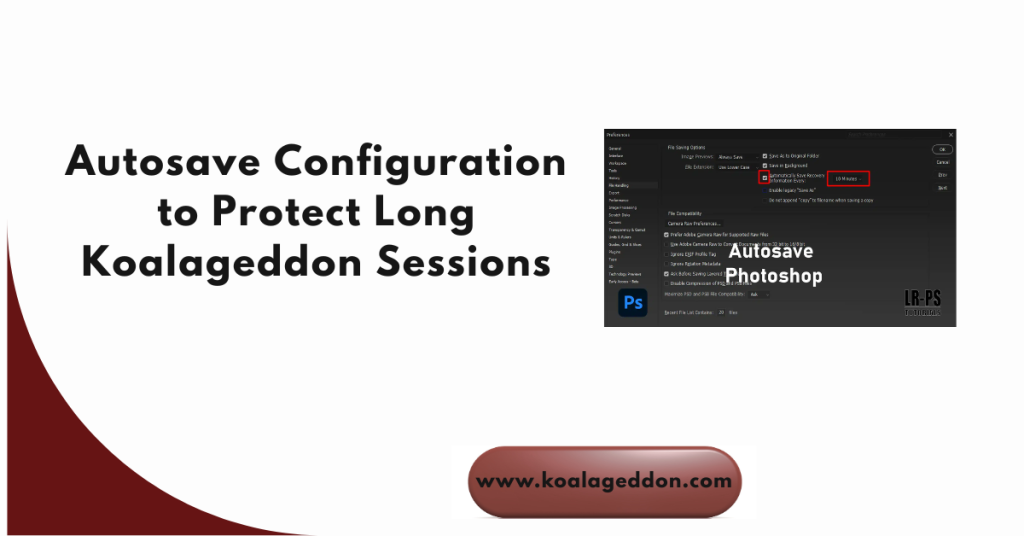
Autosave operates as a background thread that periodically takes a “snapshot” of your current config.json and integration status. In long sessions, this feature acts as a recovery checkpoint. It allows the software to return to its last known “good state” rather than starting from zero after a crash.
Choosing optimal autosave intervals
Striking the optimal balance is key:
- Short Intervals (1-3 mins): High safety, but may cause “Micro-Stuttering” on slower HDDs.
- Medium Intervals (5-10 mins): The industry standard for stability; provides an optimal compromise amidst safety and performance.
- Long Intervals (15+ mins): Low system impact, but high risk of significant data loss.
Preventing progress loss amid unforeseen crashes
To maximize protection, ensure your Autosave Directory is on a different physical drive than your operating system. This prevents a “System-Wide Hang” from corrupting the save file at the exact moment of the crash.
Session Management Techniques for Extended Koalageddon Use
Breaking work into controllable session blocks
Instead of a single 6-hour marathon session, treat your work as a series of 90-minute sprints. After each block, take a moment to verify your settings and save a manual backup. This “Segmented Workflow” limits the potential damage from any single crash to a single small time window.
Benefits of restarting sessions strategically
A “Software Refresh” (fully closing and reopening Koalageddon) is the most effective way to clear RAM fragmentation. By restarting every few hours, you force the application to re-initialize its hooks and clear out any cached errors that may have accumulated, essentially “resetting” its stability clock.
Tracking session duration to avoid overload
Use a simple timer or a third-party monitoring tool to keep track of your session length. Once you hit the three-hour mark, the risk of a “Heap Overflow” or an “Access Violation” error increases significantly. Monitoring your time is just as important as monitoring your CPU usage.
Resource Optimization to Maintain Session Stability
| CPU Usage | Set Process Priority to “Above Normal” | Prevents background tasks from interrupting hooks. |
| RAM | Clear the Standby List periodically | Frees up physical memory for long-term data. |
| Storage | Use an SSD for the Installation Folder | Drastically reduces save/load times and I/O hangs. |
Managing CPU and memory usage effectively
During a long session, keep your Task Manager open to the “Performance” tab. If you see a “Sawtooth” pattern in your RAM usage, it indicates that the software is struggling to manage its data. Closing unnecessary browser tabs or background updates can provide the “Breathing Room” your system needs to stay stable.1
Reducing active programs during sessions
Every active “Overlay” (Discord, Steam, NVIDIA) adds an additional level of difficulty for the DLL Injection process. For extended stability, disable as many of these as possible. The fewer programs competing for the same “System Interrupts,” the lower your crash risk.
Preventing system throttling and overheating
Long sessions generate heat. If your CPU hits its Thermal Limit, it will “throttle” its speed to cool down.2 This sudden drop in processing power often leads to a “Desync” in Koalageddon’s live monitoring, which can trigger an immediate crash. Ensure your cooling system is adequate for extended workloads.
File Handling Approaches That Reduce Crash Risk
Avoiding oversized or broken project files
Large configuration files or massive logs can lead to “File Parse Timeouts.” If your config.json is hundreds of kilobytes larger than usual, try cleaning out old entries. A lean file is a fast file, and a fast file is less likely to cause a timeout crash.
Saving sessions in organized directories
Keep your “Active Session” files separate from your “Archive” files. When Koalageddon has to scan a folder with thousands of old backups just to save a single new file, the Disk I/O overhead increases the likelihood that the application will hang during the save process.
Preventing file corruption during long edits
Avoid using “Cloud Sync” (like OneDrive or Dropbox) directly on your active Koalageddon folder during long sessions. The cloud software may attempt to “Lock” the file to upload it at the exact moment Koalageddon is trying to write to it, resulting in a File Sharing Violation and a subsequent crash.
System-Level Settings That Improve Long Session Performance
Power and performance mode adjustments
Set your Windows task manager Power Plan to “Ultimate Performance” or “High Performance.” This prevents the CPU from “Parking” its cores or downclocking during periods of perceived inactivity, ensuring that Koalageddon always has the raw power it needs to sustain its hooks.
Preventing sleep or hibernation interruptions
“Sleep Mode” is the enemy of active software hooks. If your PC enters a low-power state while Koalageddon is active, the Platform Integrations (Steam/EA) will often disconnect. When the PC wakes up, the “Ghost Hook” will cause the software to crash as it tries to reconnect to a process that no longer exists in memory.
Ensuring sufficient storage and memory availability
Always keep at least 15% of your SSD free. When a drive gets too full, the “Write Speeds” drop significantly.3 This slowdown can cause the autosave process to take too long, leading to a “Buffer Overflow” and a session crash.
Early Warning Signs Before Koalageddon Crashes
- Input Lag: If there is a delay between clicking a menu and the software responding, a crash is likely imminent.
- Audio Stuttering: Indicates that the CPU is struggling to meet the timing requirements of the hooks.
- Failed Autosave: If you see an error message stating “Could not write to file,” your session is already in a critical state.
- Visual Glitches: Artifacting or flickering in the software UI suggests that GPU/RAM resources are critically low.
Recovery Strategies After a Koalageddon Session Crash
Using autosave files to restore progress
After a crash, do not restart the software immediately. First, navigate to your backup folder and find the most recent .bak or .json file. Rename it to the primary configuration name. This ensures that when you relaunch, you start from a stable “Checkpoint” rather than a potentially corrupted “Crash File.”
Examining logs to identify crash triggers
Open the logs.txt file and scroll to the bottom. Look for terms such as “Access Violation,” “Out of Memory,” or “Timeout.” Identifying the specific trigger—such as a conflict with a specific game update—allows you to adjust your settings before starting your next session to prevent a repeat performance.
Adjusting session habits after recovery
If a crash occurs after four hours of use, make it a habit to restart every three hours going forward. Crash Data is the best teacher; use it to define your “Safe Session Threshold” and build a workflow that complies with your hardware’s limits.
Frequently Asked Questions
Why does Koalageddon crash only during long sessions?
Crashes throughout prolonged usage are usually caused by cumulative resource degradation. Over time, small amounts of RAM may not be properly released, or temporary log files may grow too large for the software to parse quickly. This “Technical Debt” accumulates until the system can no longer maintain the real-time hooks required for DLC emulation, resulting in a crash that wouldn’t occur during a short 15-minute session.
Does autosave fully prevent data loss during crashes?
Autosave is a powerful “Mitigation Tool,” but it is not a 100% guarantee. If the crash occurs at the exact millisecond the software is writing the autosave file, that file may become corrupted. This is why it is essential to use “Incremental Backups” (keeping multiple versions of a save) rather than just one single autosave file that gets overwritten every time.
How long is too long for a single Koalageddon session?
For most mid-range systems, the “Stability Sweet Spot” is between 2 and 3 hours. Beyond this point, the risk of a “Memory Overflow” increases. While high-end systems can run for much longer, it is a professional best practice to restart the software every few hours to flush the RAM and ensure your system remains snappy and responsive.
Can poor session management cause repeated crashes?
Yes, if you keep trying to resume a “Dirty Session” (one that has already experienced minor bugs or lag), you are much more likely to face a Fatal Crash. Ignoring early warning signs, such as UI stuttering or slow load times, is a common management mistake. Restarting the software at the first sign of trouble is the best way to prevent a minor issue from becoming a total project failure.
Should I restart Koalageddon regularly to avoid crashes?
Absolutely. A controlled restart is always better than an unexpected crash. By closing and reopening the software, you clear the “Heap Memory,” reset the platform hooks, and ensure that the software’s internal clock is synchronized with the OS. This simple habit can almost entirely eliminate “Uptime-Related” crashes.
Do background apps increase crash chances?
Background applications act as “Resource Competition.” If a program like Chrome or an Antivirus scan decides to use 100% of a CPU core while Koalageddon is performing a “Handshake” with a game server, the resulting “Latency Spike” can cause the hook to fail. Lowering background activity is necessary for maintaining the “High-Priority” environment required for long sessions.
Is reinstalling Koalageddon necessary for session crashes?
Reinstalling is rarely necessary for session-based crashes unless your core .dll files have been corrupted by a previous failed save. Most session crashes are environmental (RAM/CPU/Background apps). Before opting for a full reinstall, try clearing your “Cache” and “Temp” folders and fine-tuning your Windows Power Settings, as these steps resolve 90% of stability issues.
Conclusion
A well-configured autosave system provides the peace of mind needed to focus on your work.4 It makes certain that even if the hardware fails, your creative and technical progress is never more than a few minutes away from recovery, making it the most critical setting for any long-term user.
By segmenting your sessions, monitoring your system’s “Body Language” (lag/stutter), and performing regular restarts, you take control of the software’s stability. This professional approach to session management ensures that Koalageddon remains a reliable tool, even during the most heavy-duty operations.
For the best results, always work from an SSD, maintain at least 8GB of free RAM, and keep your “Background Noise” to a minimum. By respecting your system’s limits and adhering to an organized save-and-restart routine, you can enjoy long, productive sessions in Koalageddon without fear of crashing.
Latest Post: